Dock an agent beside an existing app
AgentDrawer adds an agent to an app without giving up the app's layout. It is a collapsible drawer on the right holding an AgentChat, with views of the artifacts the agent publishes and the approvals it is waiting for. The drawer has no tab strip: the artifacts open from a button in its header, which counts them, and a bar above the chat says how many actions wait for the user and opens the approvals. Both views have a back button to the chat.
import panel as pn

from panel_agents import AgentDrawer
from panel_agents.adapters.pydantic_ai import AgentRunner

runner = AgentRunner(agent, deps=deps, approval_policy=policy)
drawer = AgentDrawer(runner, main=app, title="Assistant")

pn.ui.Page(title="My app", header=[drawer.toggle], main=[drawer]).servable()
main is the existing content. In the default persistent variant the open drawer sits beside it and narrows it. With variant="temporary" the drawer overlays the content instead and closes when the user clicks outside it. Without main, the drawer renders on its own, for example as the last item of a row you already have.
drawer.toggle is a header button that opens and closes the drawer. Its badge counts pending approvals, the count is part of its accessible name ("Assistant, 2 pending approvals"), and aria-expanded tells screen readers whether the drawer is open. Opening the drawer with the toggle moves focus to the chat input, and closing it returns focus to the toggle. With open_on_approval=True (the default) a new approval opens a persistent drawer, so a paused run does not go unnoticed. A temporary drawer would cover the app in the middle of the user's work, so there a new approval only updates the badge. open, width and tab ("chat", "artifacts" or "approvals") are parameters, so the app can open the drawer on a given view, for example from a command palette.
The drawer's left edge is a handle that resizes it: drag it, or focus it with Tab and use the arrow keys. It goes from min_resize_width (240 px) to max_resize_ratio of the window (0.6), and a resize sets width, so the app can store it and open the drawer at that width next time. Pass resizable=False for a fixed width.
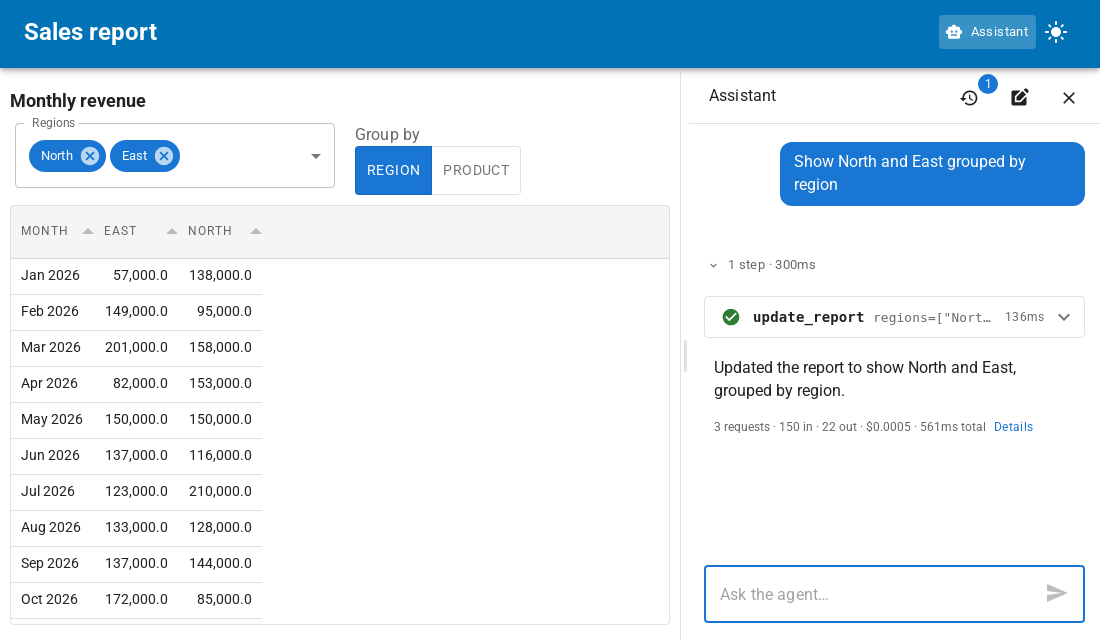
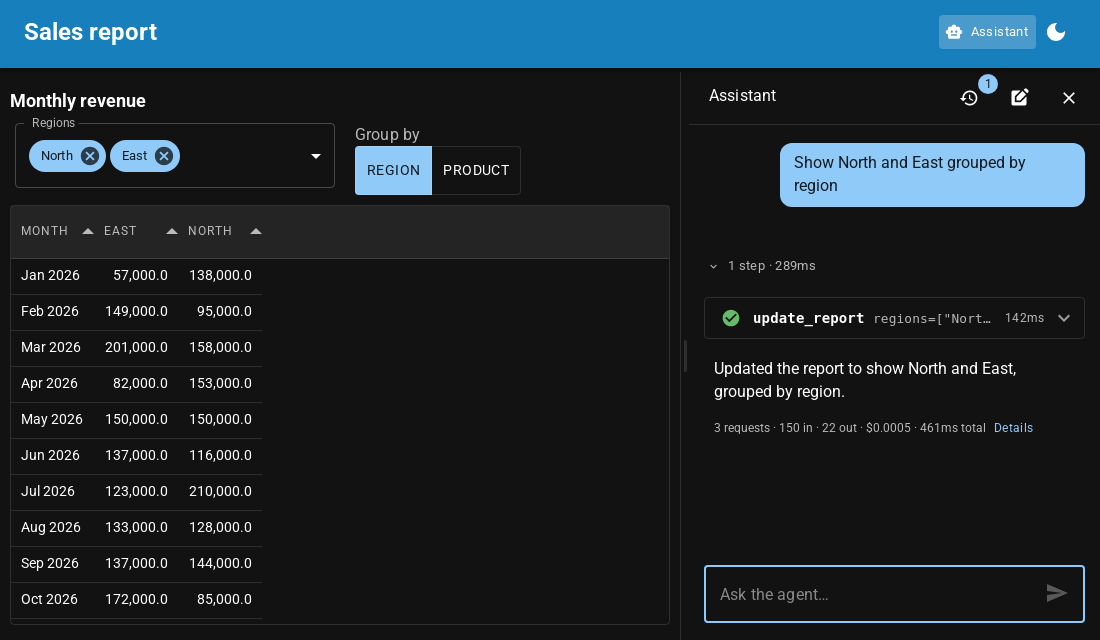
What the drawer passes on
- The runner's
stateis shown and itsapproval_policy.can_approvedecides who may approve, in the chat and in the approvals view. Passcan_approveto override it. on_applyis the callback for document artifacts. The artifacts view offers to apply or revert their versions, see document artifacts.overlay_below=1200makes a persistent drawer overlay the app, like the temporary variant, while the window is narrower than 1200 px, so a small screen keeps its full width for the app. In that mode a new approval only updates the toggle's badge.- Finished tool calls of a run fold into one "3 steps · 2.1s" row that expands; calls that failed, were denied, wait for approval or published an artifact always show. Turn it off with
chat_params={"group_tool_calls": False}.chat_params={"tool_labels": {...}}names calls in the user's words, by tool name, with a string or a callable of the call's arguments, e.g.{"get_report": "Read the report", "update_report": lambda args: "Change " + ", ".join(args)}; imperative labels read right whether the call is running, done, failed or waiting for approval. The tool name stays in the card's body and its accessible name. chat_paramsare passed to theAgentChat, for example{"placeholder": "Ask about this dashboard"}; Arrange the chat covers its layout and message parameters. The drawer frames the chat itself, so it draws the chat feed flat instead of as a raised card;chat_params={"feed_params": {"card_params": {...}}}changes that, and the otherfeed_paramsyou pass are merged with the drawer's.- The New conversation button starts a new conversation. It clears the runner's history and the session's runs, artifacts and approvals, and is disabled while a run is in progress. When there are document artifacts, it asks first, because their versions could no longer be compared or reverted.
Let people pick the model
Give the chat several models and it shows a small menu button below its input:
from panel_agents import ModelChoice

drawer = AgentDrawer(runner, chat_params={
    "models": [
        ModelChoice("openai:gpt-5-mini", label="GPT-5 mini", description="Fast and cheap"),
        ModelChoice("anthropic:claude-sonnet-5-5", label="Claude Sonnet"),
    ],
    "remember_model": "my-app-model",
})
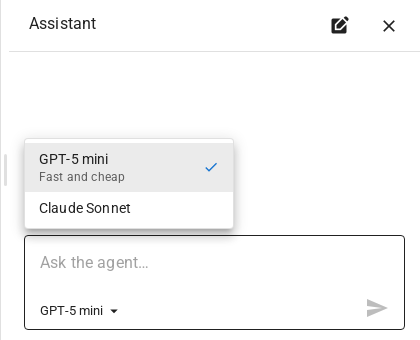
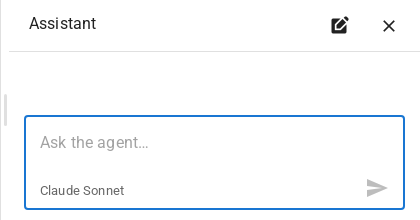
A model is a pydantic-ai model string, a dict of ModelChoice fields or a ModelChoice; ModelChoice(id, model=...) runs a ready-made model object, e.g. one with a custom provider, under that id. Each id is offered once, models that share a label show their id too, and the button is named "Model" for screen readers. With a single model there is nothing to pick, so its name is shown as plain text in the same place, with its id as a tooltip, and it takes the keyboard focus so keyboard and screen reader users reach the id too; with no models nothing is shown. The picked model becomes the runner's model, which AgentRunner reads when a request starts, so switching applies from the next request and never to one in progress: a run paused for an approval keeps its model, and run(deferred_tool_results=...) starts a new run with the model picked by then. A model passed in run_kwargs or to run, such as a Cassette, still wins. Each model's description is listed under its name, and a model the runner cannot use, typically because its provider's package or API key is missing, is listed disabled with the reason (AgentRunner.unavailable_reason) instead, without showing any key. model_id sets the initial pick (the first usable model by default), and with remember_model the browser keeps the last pick in localStorage under that key and starts the next session with it while it is still offered and usable. Every model request records its model, so the usage line, the model-call cards and the run's details show which model answered.
Hand an item over to the agent
When the person moves from another part of the app to the agent with something in hand, for example a chart they just added, mention it in the chat's input so their next message is about it:
from panel_agents import Mention

drawer.chat.mentions = [Mention("sales_by_region", icon="bar_chart")]
drawer.open = True
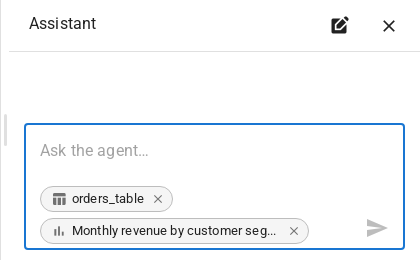
Each mention is a chip in the input, below the text, with its label cut short when long and a button that removes it and puts the focus back in the input; Backspace in an empty input removes the last one. Sending a message writes the mentions at its start and clears them, so the agent reads what the message is about and the conversation shows it: "@sales_by_region make it a bar chart". Mentions that would write the same name show as one chip and are written once, as @ and the label, quoted unless it is made of letters, digits and _ . - / : only (@"Sales by region"); Mention(..., text="...") writes something else, e.g. an id. A label must not be empty. Tell the agent in its instructions what an @ name refers to in your app.
drawer.chat, drawer.artifacts and drawer.approvals give access to the AgentChat, ArtifactPane and ApprovalQueue inside.
Use a page's contextbar instead
pn.ui.Page has its own right-hand contextbar. To use it, place the drawer's body there instead of the drawer itself:
import panel as pn

from panel_agents import AgentDrawer

drawer = AgentDrawer(runner)
pn.ui.Page(main=[app], contextbar=[drawer.content], contextbar_width=420, contextbar_open=True)
examples/drawer_app.py docks an agent beside a small sales report. The agent edits the report settings as a document artifact, filters through a front-end action, and needs approval to export.